Selling Presale Products
When a new set is announced, Sideboard automatically detects which products are presale and handles them differently from live inventory — so your preorder campaign is protected without you having to configure anything special.
This page explains exactly what happens at each stage: from catalog detection through your Shopify storefront, your buylists, and all the way to release day when the flag clears on its own.
How presale is detected
Sideboard reads its product catalog from a TCGPlayer-aligned data source that includes a presale signal on every product. When a product is flagged as presale, Sideboard captures three pieces of information:
- Presale status — whether the item is currently a preorder
- Release date — the estimated ship date (e.g.,
June 5, 2026) - TCGPlayer’s disclaimer note — a short customer-facing message explaining that card details, including rarity and card name, may change before release
You don’t configure this. It comes in automatically when the catalog refreshes each night.
What you see in Sideboard
The “Presale” badge
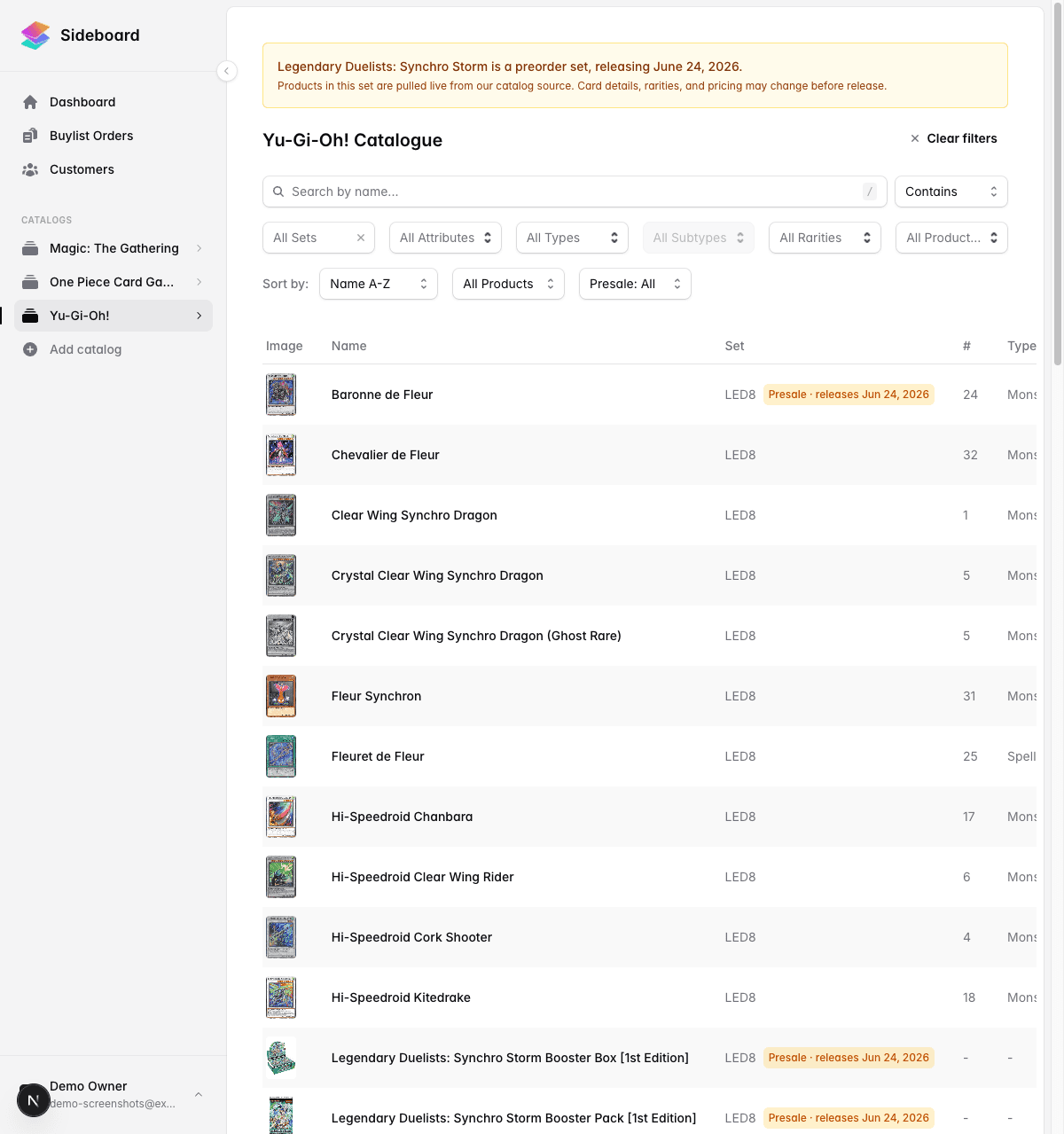
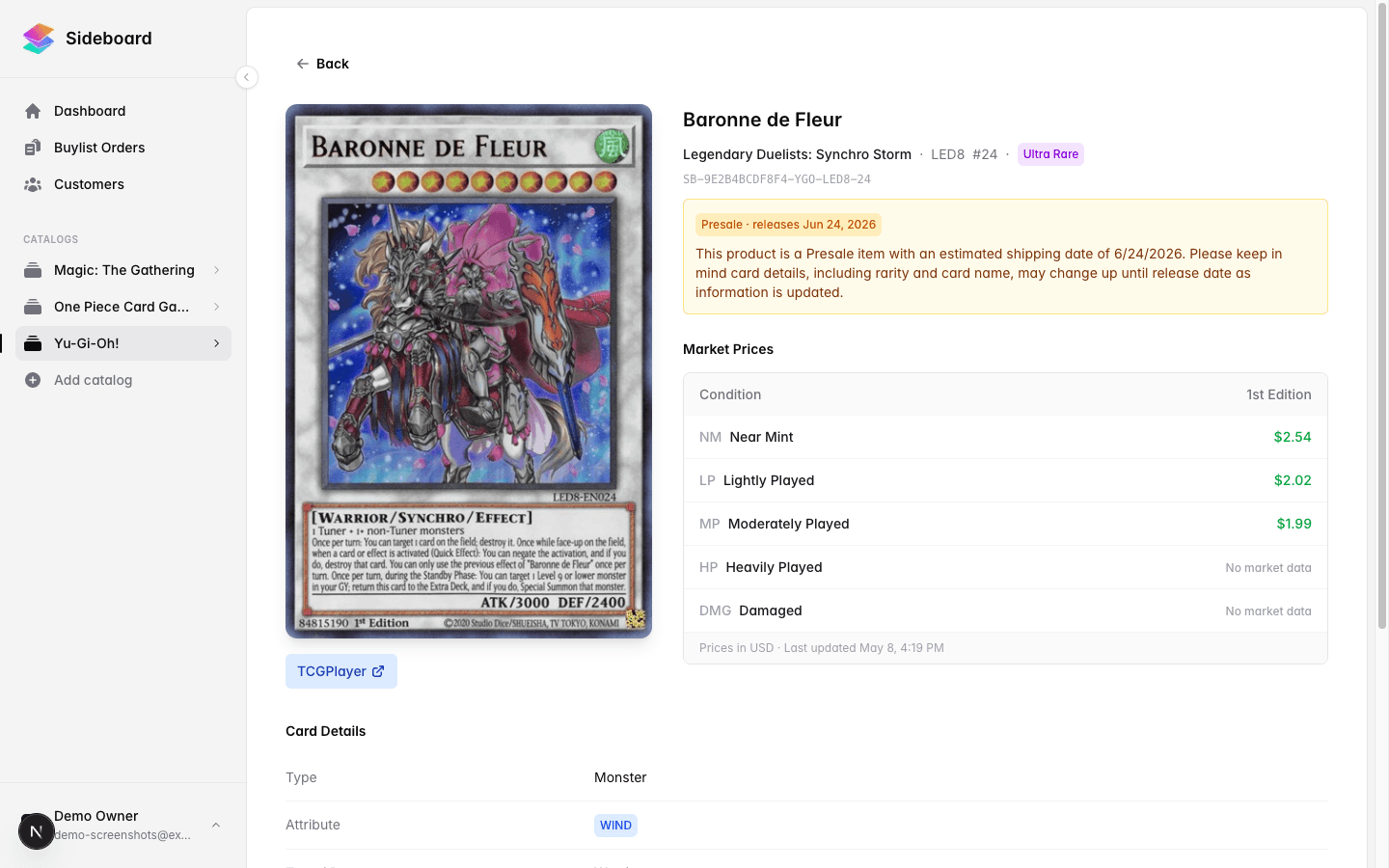
On every catalog page (MTG, One Piece, Riftbound, etc.), presale products show an amber Presale · releases Jun 5 chip next to the set code. Click through to the card detail page to see the full TCGPlayer disclaimer note.
The presale filter
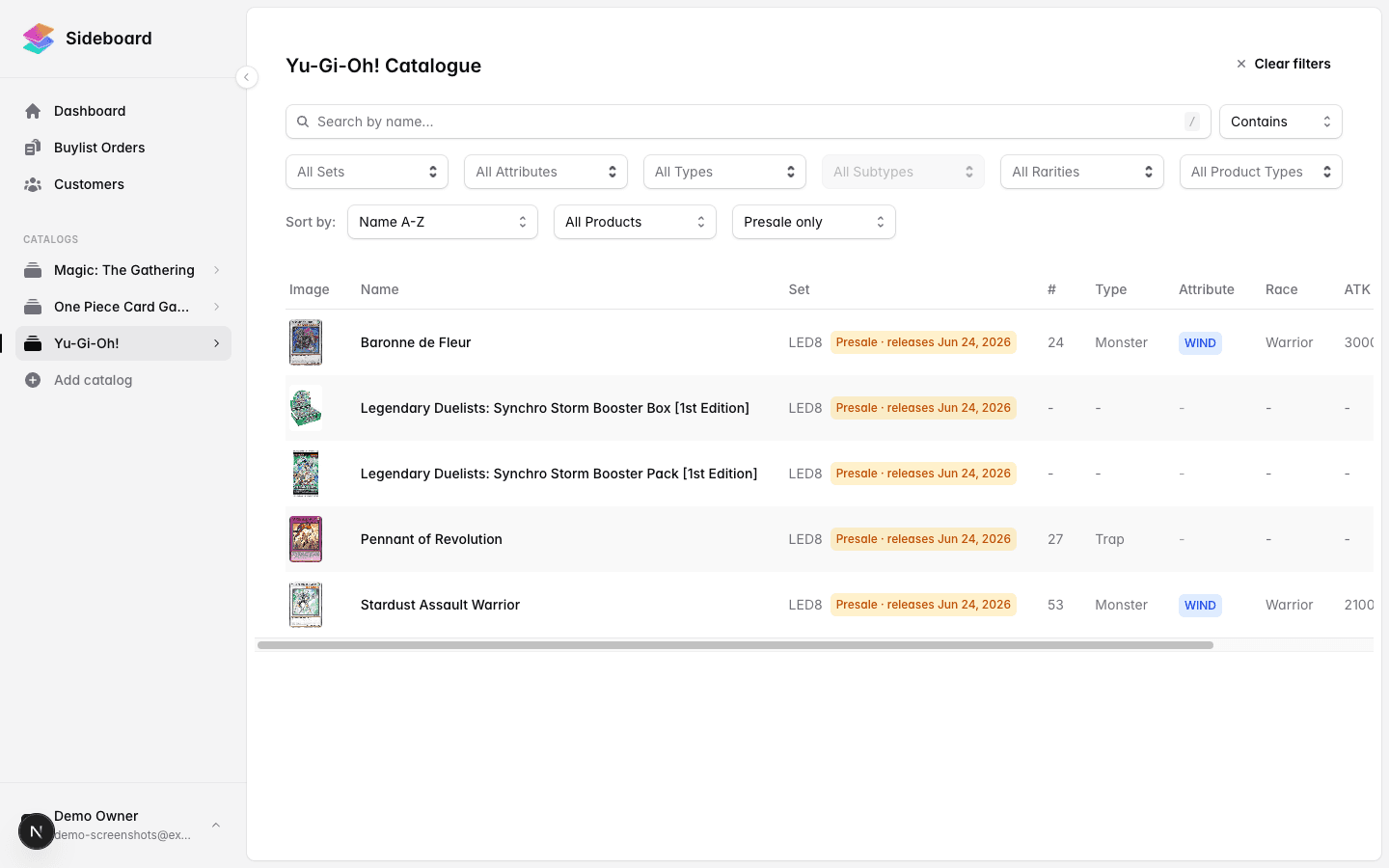
Every catalog page has a filter dropdown for presale status:
- All (default) — shows presale and released products together
- Released only — hides presale items; useful if you only want to work with live inventory
- Presale only — surfaces just the preorder products; useful when preparing your presale campaign
The preorder set banner
When you select a set whose release date is still in the future, a notice appears above the card listing explaining that the set is upcoming and details may still change before release.
Taking preorders: what to do
”I want to take preorders for the new Marvel set — what do I do?”
-
Find the set in your catalog. Use the Presale filter to narrow it down. Products for upcoming sets appear as soon as TCGPlayer lists them.
-
Add the products to your inventory. Set the quantity to your expected distributor allotment — for example, if you’re expecting two cases of booster boxes, add that count. Each preorder your customer places (via Shopify) decrements this quantity, so you won’t oversell your allocation.
-
Set your pricing. Presale products pull market data from the same feed as released products — prices are typically available for sealed product and populate for singles as TCGPlayer catalogs them in the run-up to release. Your existing pricing rules apply automatically.
-
Push to Shopify. If you have auto-push enabled, presale products push to your Shopify store the same way released products do. If you manage pushes manually, push the presale items from the Products section of your Shopify integration.
That’s it. The preorder badge, disclaimer copy, and Shopify tagging all happen automatically.
What happens on Shopify
Presale items arrive in your Shopify store with two signals your theme can use:
The Presale tag
Every presale product is tagged Presale automatically. If your Shopify theme supports it, this tag can trigger preorder-specific UI — for example, changing the “Add to Cart” button to “Pre-Order” or showing a deferred shipment message.
The Presale tag is removed automatically on release day (see below). You don’t need to untag products manually.
The disclaimer in the description
The TCGPlayer disclaimer note — “This product is a Presale item with an estimated shipping date of XX/XX/XXXX. Please keep in mind card details, including rarity and card name, may change until release date…” — is prepended to the product description automatically for every presale item.
Released products get their description unchanged. No prepend.
Inventory and ordering flow normally
Presale products are set to Active in Shopify with a real inventory quantity. Customers can add them to cart and check out normally. Each order decrements your available-to-preorder count, just like a regular in-stock product.
FAQ
A customer ordered my presale, then the set released — what happens automatically?
Sideboard checks presale status daily. When the data source flips the product from presale to released (typically on or just after release day), Sideboard picks it up within 24 hours and:
- Removes the
Presaletag from the Shopify product - Removes the disclaimer prepend from the description
- Relists the product on CardTrader (if you have that integration connected)
No manual action is required. The transition happens in the background. Your existing Shopify orders are unaffected — Shopify order fulfillment is separate from how Sideboard represents the product.
I don’t want my Shopify store to show preorders at all — what are my options?
You have two options:
-
Don’t add presale items to your inventory. Sideboard only pushes products you’ve added to inventory. If you skip the presale items, nothing goes to Shopify.
-
Use the
Presaletag in your Shopify theme to hide or style these products. For example, you can configure a Shopify collection filter to exclude products with thePresaletag from your main collections, while keeping them available via direct URL or a “Coming Soon” collection.
There is no setting in Sideboard that blocks specific products from pushing — the control point is your inventory.
Why isn’t this presale card showing up on my customer-facing buylist?
Presale products are excluded from customer-facing buylists. This is intentional and cannot be overridden.
Your customers cannot submit a quote or sell you a card that hasn’t been released yet. The exclusion runs before Sideboard evaluates any of your buylist rules, so presale items won’t appear on your public buylist page even if your rules would otherwise include them.
This protects you from customers trying to sell you cards before they can physically have them.
Can I add a presale product to a buylist manually as an admin?
No. If you try to manually add a presale product to a buylist from the admin side, Sideboard will return an error: “Cannot add presale products to a buylist. ‘[Product name]’ is available after [release date].”
The buylist restriction lifts automatically once the product’s presale flag clears.
Can I create a pricing rule that applies specifically to presale products?
Yes. In the pricing rule builder (under Inventory or Buylists → Pricing Rules), you’ll find Presale Status in the criterion dropdown. You can configure a rule that applies only to presale items — for example, to exclude them from auto-pricing entirely, or to apply a different markup while the product is a preorder.
If you don’t create any presale-specific rules, your existing auto-pricing rules apply to presale products the same as released ones.
Why isn’t the presale badge showing for a product I think should be a preorder?
Presale status comes from the TCGPlayer data source. If TCGPlayer hasn’t flagged the product yet — for example, a set that’s been announced but not yet listed — Sideboard won’t show a presale badge either. The flag appears as soon as the source updates its catalog.
What does “released” look like?
When a product’s release date arrives and the data source flips its status to released:
- The amber presale badge disappears from the Sideboard catalog
- The Shopify
Presaletag is removed within 24 hours - The disclaimer copy is removed from the Shopify description
- CardTrader receives an updated listing for the product (if you’re connected)
You don’t need to do anything. Your inventory quantity stays as-is — any remaining stock (after fulfilled preorders) continues selling normally.
CardTrader and presale
CardTrader’s marketplace doesn’t support preorders. Sideboard excludes all presale products from CardTrader listings entirely — they will not appear as available inventory on CardTrader until after release day.
When a product transitions to released, Sideboard automatically submits it to CardTrader for any inventory you have in stock.
What’s next
- Shopify Setup — connect your store and configure auto-push behavior
- Adding Products to Your Inventory — how to add cards and set quantities
- How Pricing Works — pricing rules, market data, and auto-pricing
- Live Catalogs — how Sideboard keeps your catalog up to date automatically
- Receiving Slack Alerts — get notified when new sets land in your catalog
Was this page helpful?
Spotted something wrong, or want to suggest an improvement? Email support → — your message goes straight to engineering.