Billing
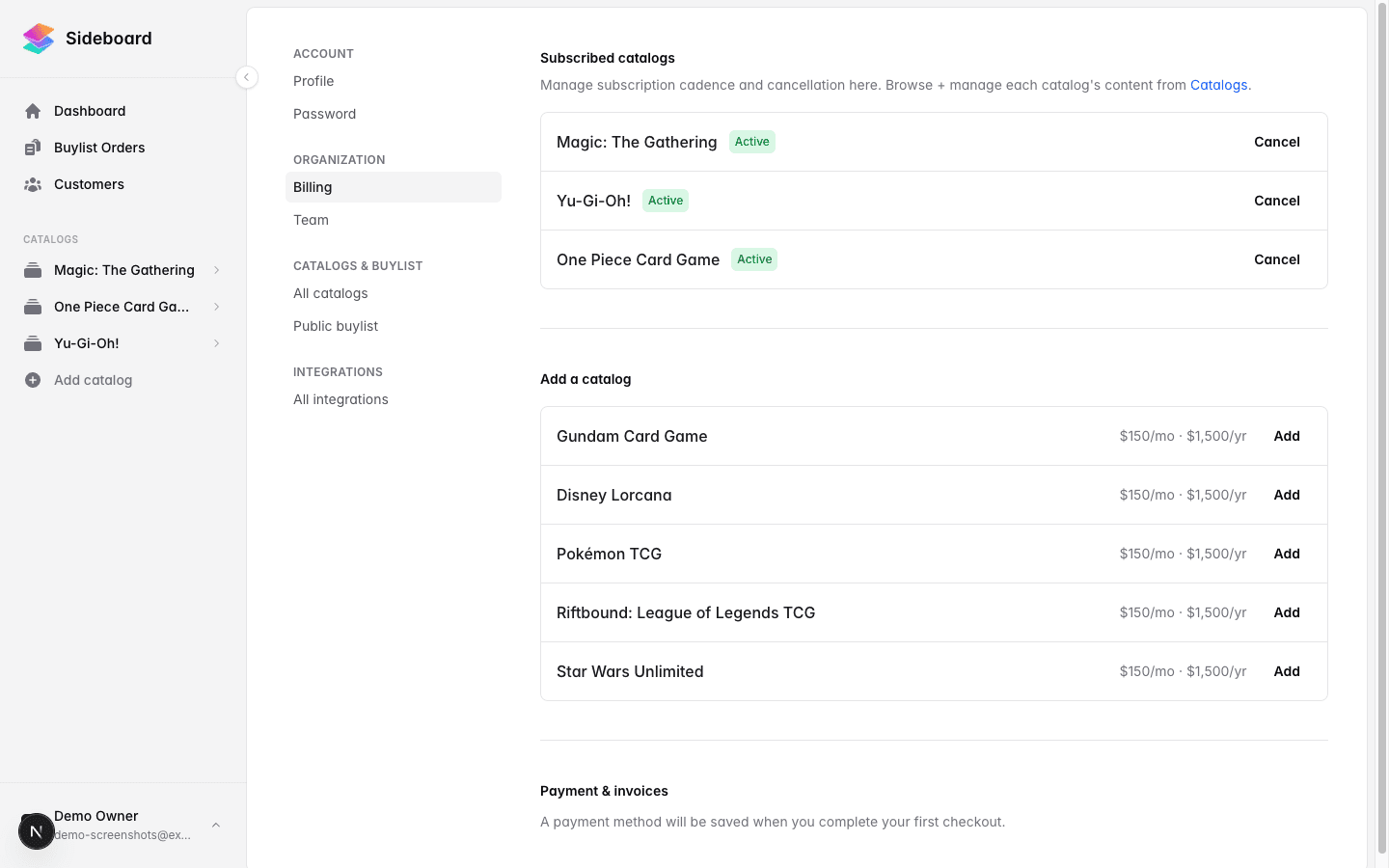
Sideboard’s subscription is per game. You pay for the games you carry — nothing more. Subscribing to a game gives your store full access to that game’s inventory management, buylists, and storefront features. Unsubscribed games can still be browsed freely; the paywall only activates when you try to create an inventory or buylist for a game you haven’t subscribed to.
Pricing
| Billing cadence | Price |
|---|---|
| Monthly | $150 CAD per game, per month |
| Annual | $1,500 CAD per game, per year |
Annual billing works out to ten months for the price of twelve — the equivalent of two months free. Canadian taxes (GST/HST/PST) are added on top based on your location. Sideboard’s checkout displays the price as “$150 CAD + tax” so there are no surprises.
Examples:
- One game, monthly: $150 CAD + tax/month
- Three games, monthly: $450 CAD + tax/month
- One game, annual: $1,500 CAD + tax/year
All Access — everything for one price
If you carry most of what Sideboard offers, All Access bundles every catalog — including every catalog we launch in the future — plus Priority Support (a dedicated account manager with priority response times) and the Events Calendar into a single subscription:
| Billing cadence | Price |
|---|---|
| Monthly | $1,500 CAD per month |
| Annual | $15,000 CAD per year (two months free) |
How to get it:
- Already subscribed? Open Settings → Organization → Billing and look for the All Access card at the top. It shows what you pay today and what you’d save. Click Upgrade to All Access to review the exact, to-the-cent changeover cost before anything is charged — Stripe credits you for the unused portion of your current games and charges the difference. If the credit is larger than the charge, you pay $0 today and the balance applies to your next invoice.
- New to Sideboard? Choose Get All Access at your first checkout. The 30-day free trial applies, just like a single catalog.
Good to know:
- All Access replaces your per-game subscriptions — one line on your invoice, one renewal date.
- Any promo code already on your subscription keeps applying to the All Access price.
- When a new catalog launches on Sideboard, it’s added to your account automatically at no extra charge — you’ll get an email letting you know.
- While on All Access, individual catalogs show as Included and can’t be canceled one-by-one. To leave the plan, cancel All Access itself: you keep everything until the end of the period, then can re-subscribe to individual games (or All Access) anytime.
Add-ons
Add-ons ride alongside your catalogs on the same subscription, invoice, and renewal date.
| Add-on | Price | Notes |
|---|---|---|
| Events Calendar | Free with any catalog — $150 CAD/month only if it’s your only subscription | See Events Calendar |
| Priority Support | $150 CAD/month | Dedicated account manager, replies within 4 business hours, private Slack or email channel, guided onboarding |
Add them from Settings → Catalogs. Because they join a subscription you already have, you’ll see the exact prorated amount before anything is charged, and they renew alongside your catalogs.
Events Calendar, in detail. It’s free the moment you hold a catalog — no action needed. The $150 price exists for shops that want an events page without a card catalog; that’s a standalone subscription, and it gets the same 30-day free trial as a first catalog.
Two edge cases worth knowing:
- If you bought the calendar standalone and then subscribe to a catalog, Sideboard removes the calendar charge from your subscription automatically and credits you for the unused time. You keep the calendar; you just stop paying for it.
- If you cancel your last catalog, the free calendar goes with it — including your published storefront event listings. You can re-subscribe to the calendar on its own to keep running events.
Subscribing to a game
Only store owners can subscribe.
- Go to Settings → Catalogs (or click + Add catalog in the sidebar).
- Find the game you want to subscribe to and click Start free trial (first catalog) or Subscribe (second+).
- You’ll be redirected to Stripe’s hosted checkout page.
- Enter your payment details, tick the box to agree to our Terms of Service and Privacy Policy, and complete the purchase. If you have a promo code, type it in the Promotion code field — it’ll apply to your first paid invoice 30 days from now.
- You’re redirected back to Sideboard. Your catalog is immediately active in trial mode — full features, no charge for 30 days.
Choosing monthly vs. annual: You’ll choose your billing cadence at your first checkout. All games on your account share the same cadence — you can’t mix monthly games and annual games on the same account. Your second and subsequent games automatically match the cadence of your first subscription.
Free trial: Every new Sideboard account gets a 30-day free trial on its first catalog. You enter your card at checkout but aren’t charged until the trial ends. Cancel anytime before then with the Cancel button next to the catalog in Settings → Billing.
Adding a second game during your trial: The new catalog joins your existing free trial — no charge today. When the trial ends, the first invoice covers all your catalogs together.
Adding a second game after the trial (or on a paid subscription): You’re charged a prorated amount today for the days remaining in the current period. From your next renewal date onward, all games renew together on one invoice.
Promo codes: Enter any active promo code in the Promotion code field at Stripe Checkout. It applies to your first paid invoice (after the trial). Codes are also accepted on subsequent renewals via the Stripe Customer Portal.
Managing your subscription
Go to Settings → Organization → Billing to see your full subscription overview:
- Which games you’re subscribed to and their current status
- Your current billing cadence and next renewal date
- A list of recent invoices
- Links to the Stripe Customer Portal for payment method changes
Subscription statuses
| Status | What it means |
|---|---|
| Trial | Free for 30 days. Full access. First invoice on the trial-end date. |
| Active | Paid and in good standing. Full access to the game. |
| Cancels [date] | You’ve scheduled a cancellation. Access continues until the date shown, then stops. |
| Past due | A payment failed. Access is suspended until the payment is resolved. |
| Canceled | Subscription has ended. No access to inventory or buylist features for this game. |
Hiding a catalog you don’t use
If you carry only some of the games Sideboard offers — or you’re on All Access and get every new catalog automatically — you can tidy the ones you don’t sell out of your way.
- Go to Settings → Catalogs.
- Find the catalog you want out of the way and click Hide.
It disappears from the sidebar and from your dashboard tiles. Everything else carries on exactly as before:
- The catalog stays subscribed and fully active. Pricing keeps syncing, your storefront keeps listing, buylist orders keep coming in.
- Existing inventories and buylists for it keep working, and their links keep working.
- It stays listed under Settings → Catalogs (in a Hidden catalogs section) and on your Billing page, so you always see what you’re paying for.
- If a payment ever fails, the alert still shows on your dashboard.
To bring it back, click Show in sidebar on the same card. Creating a new inventory or buylist for a hidden catalog also un-hides it automatically.
Two things to know: only owners can hide catalogs, and the change applies to everyone on your team. You can’t hide your last remaining catalog.
Hiding is just tidying — it doesn’t reduce your bill. To stop paying for a game, cancel it instead (below).
Canceling a game
You can cancel a game’s subscription at any time from Settings → Organization → Billing.
- Find the game you want to cancel in the Subscribed catalogs list.
- Click Cancel subscription on that game’s row.
- Confirm the cancellation.
What happens when you cancel:
- Your access continues until the end of the current billing period. You won’t be charged again after that.
- No partial refunds are issued for unused days in the current period — you paid for the period, you keep the period.
- When the period ends, you lose the ability to create new inventories and buylists for that game, and existing inventories and buylists become read-only.
- Your data is not deleted. If you resubscribe later, everything picks up where you left off.
Changed your mind? If you cancel and then decide to keep the subscription before the period ends, go back to Billing and click Restore on that game’s row. The cancellation will be reversed and you’ll continue as normal.
Updating your payment method
If your credit card is expiring or you need to switch cards:
- Go to Settings → Organization → Billing.
- Click Manage in Stripe to open the Stripe Customer Portal.
- Update your payment method in the Stripe portal.
- Return to Sideboard.
Changes take effect immediately. If a payment was failing due to an expired card, updating the card and allowing the retry will restore your access.
What happens if a payment fails
If Stripe can’t collect payment at renewal, your subscription moves to past due status. Access to that game’s inventory and buylist features is suspended until the payment is resolved.
Stripe will retry the charge automatically over the following days and will email you with instructions for updating your payment method. Once a payment succeeds, your access is restored immediately and the status returns to Active.
Viewing invoices
All invoices are accessible from Settings → Organization → Billing. Each invoice shows the games billed, the amounts charged, and tax applied. You can download individual invoices as PDFs for your accounting records.
Frequently asked questions
Can I subscribe to some games monthly and others annually? No. Your account has a single billing cadence. All games share the same monthly or annual cycle.
Can I get a refund if I cancel mid-month? No. Cancellations take effect at the end of the current period, and no refund is issued for unused days. You keep full access until the period ends.
What happens to my inventory data if I cancel? Your data is preserved. Inventories and buylists become read-only, but nothing is deleted. If you resubscribe, you pick up right where you left off.
What if I cancel all my games? Your Sideboard account remains active. You can still log in, view customers, and browse card catalogs. You just won’t be able to create new inventories or buylists until you resubscribe to at least one game. You also lose the Events Calendar that came free with your catalog, including your published storefront event listings — see Events Calendar.
Do I pay extra for the Events Calendar? No, not while you have a catalog. It’s included with any catalog subscription. The $150 price only applies to a store that runs the calendar with no catalog at all.
Can I change from monthly to annual later? Contact Sideboard support to change your billing cadence. This isn’t yet self-serve but is on the roadmap.
What’s next
- Settings Overview — The full Settings navigation map
- Events Calendar — Included with your catalog subscription
- Adding Your First Game — Subscribe and start working with a game catalog
- Catalogs overview — What each game offers in Sideboard
Was this page helpful?
Spotted something wrong, or want to suggest an improvement? Email support → — your message goes straight to engineering.