Managing Your Inventory
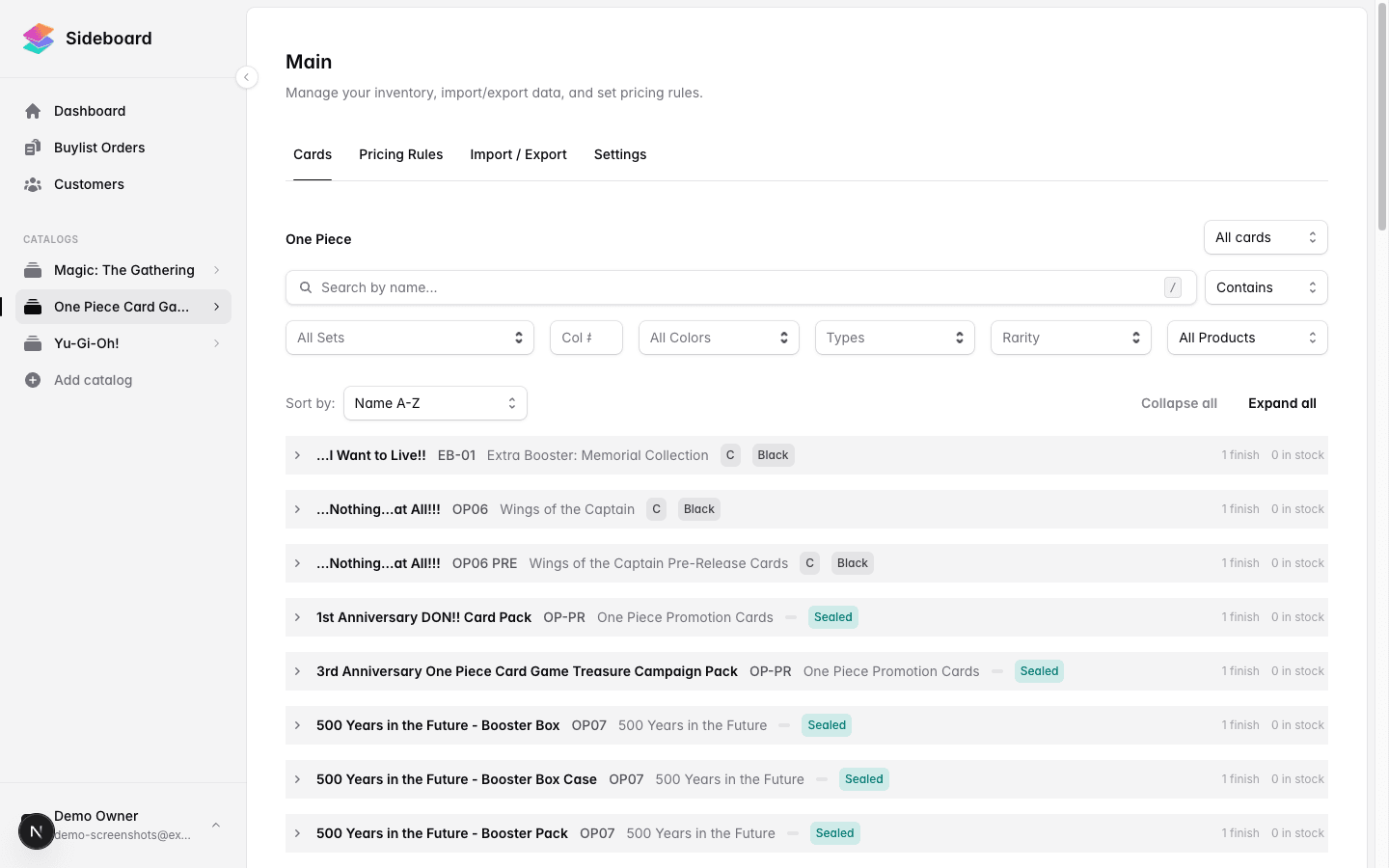
Once cards are in your inventory, you’ll regularly need to adjust quantities, set custom prices, and keep things tidy. This guide covers editing inventory items, manually overriding prices, bulk updates, and removing items.
Browsing Your Inventory
Open Inventory from the left nav and select your game. Your inventory list shows every card you’re currently stocking, along with quantity, condition, finish, and current sell price.
Use the filters at the top to narrow by set, colors, format, card type, rarity, and more. A stock filter dropdown lets you view all cards, in-stock only, or out-of-stock only.
Use the search bar to find a specific card by name.
Editing a Single Item
Each card in the inventory list shows a quantity grid (the Qty tab) and a pricing view (the Pricing tab). Edits are made directly in the grid — no separate detail panel to open.
From the grid you can update:
Quantity
Click the + or − buttons, or type a value directly into the quantity field. Changes save automatically on blur. Sideboard records every quantity change in your audit log.
Setting quantity to 0 removes the item from your live inventory (it stops appearing on your storefront). The item record and its history are retained.
List Price (see Manual Pricing below)
Understanding Sell Prices
Sideboard calculates a sell price for every item using your pricing rules and current market data. This is the price that gets pushed to Shopify and other connected storefronts.
There are two modes for any given item:
| Mode | What drives the price |
|---|---|
| Automatic (default) | Pricing rules applied to the current market price. Updates as market prices change. |
| Manual | A fixed price you enter. Stays put until you change it or reset it. |
The sell price shown in the inventory list is always the effective price — whichever mode is active for that item.
Setting a Manual Price
Use a manual price when you want to override the market-based calculation for a specific card — for example, to hold a signed copy at a premium or to clear a card at a discount.
To set a manual price:
- Click the Pricing tab on the card’s row.
- In the List row for the variant and condition you want to override, enter your price.
- The value saves automatically when you move focus away.
The price you entered is now locked for this item. Market price changes won’t affect it until you clear the field.
To revert to automatic pricing:
- Click the Pricing tab.
- Clear the price field for that variant/condition (leave it blank and press Enter or click away).
The item immediately reverts to your pricing rules applied to current market data.
Manual pricing affects this item only — it doesn’t change your pricing rules. To adjust how all your prices are calculated, see How Pricing Works.
Bulk Updates
To update many items at once, use Bulk CSV Import. The import wizard supports both setting absolute quantities and adding to existing stock, and shows you every row it couldn’t match before anything is committed.
Direct quantity and price edits are made per-card in the inventory grid. Syncing to Shopify happens automatically after any change.
Removing Items
Remove a Single Item
Set the item’s quantity to 0 in the quantity grid. The item is removed from your storefront but stays in your inventory history.
What “Removed” Means
Sideboard uses soft removal — items with zero quantity are hidden from your live storefront. You can reveal them by switching the stock filter dropdown (top right of the inventory list) to Out of stock.
If a card you removed comes back into stock, just add it again or import it via CSV — its previous history is still there.
Inventory Audit Log
Every change to an inventory item is recorded automatically: who made the change, when, what changed, and where it came from (manual edit, CSV import, Shopify sale, etc.).
Log entries include:
- Change type (addition, removal, adjustment)
- Quantity before and after
- Source (manual, Shopify, CardTrader, import, etc.)
- Date and user
This includes stock added by completing a buylist order — the entry shows the staff member who completed it and how many cards were added, so every change to your stock is accounted for.
Inventory and Shopify Sync
When you change a quantity or price on any inventory item, Sideboard pushes the update to your Shopify storefront automatically (if connected). This typically takes a few seconds.
Likewise, when a sale happens on Shopify, the quantity is reduced in Sideboard automatically. You’ll see these changes in the audit log with the source listed as “Shopify.”
If you notice a discrepancy between Sideboard and Shopify, go to Settings → Integrations → Shopify and click Reconcile to force a full sync check.
Common Issues
I changed a price but it’s not showing on my Shopify store.
Check that the item isn’t in an error state by opening it and looking for any sync warnings. If everything looks clean, wait 30 seconds and refresh Shopify. If it’s still out of sync, use the Reconcile button in your Shopify integration settings.
I removed an item but it still shows on Shopify.
Shopify sync runs after a brief delay. Wait a minute and check again. If the listing is still live on Shopify, go to Settings → Integrations → Shopify and click Reconcile to force a full sync check.
The calculated price for a card seems wrong.
The calculated price comes from your pricing rules applied to current market data. Check Settings → Pricing Rules to see your markup/markdown settings, and check the item’s market price by opening it and clicking Price Details. If the market price looks off, it may be a data lag — prices refresh every few hours.
I can’t find a card I know I added.
By default, the inventory list hides zero-quantity items. Change the stock filter dropdown (top right) to Out of stock to reveal cards you’ve zeroed out.
What’s Next
- Bulk CSV Import — Update hundreds of items at once via spreadsheet.
- Exporting Inventory — Download your full inventory as a CSV.
- How Pricing Works — Set up rules that automatically calculate sell prices from market data.
- Creating a Buylist — Set up buy prices for cards you want to purchase.
Was this page helpful?
Spotted something wrong, or want to suggest an improvement? Email support → — your message goes straight to engineering.