Adding Products to Your Inventory
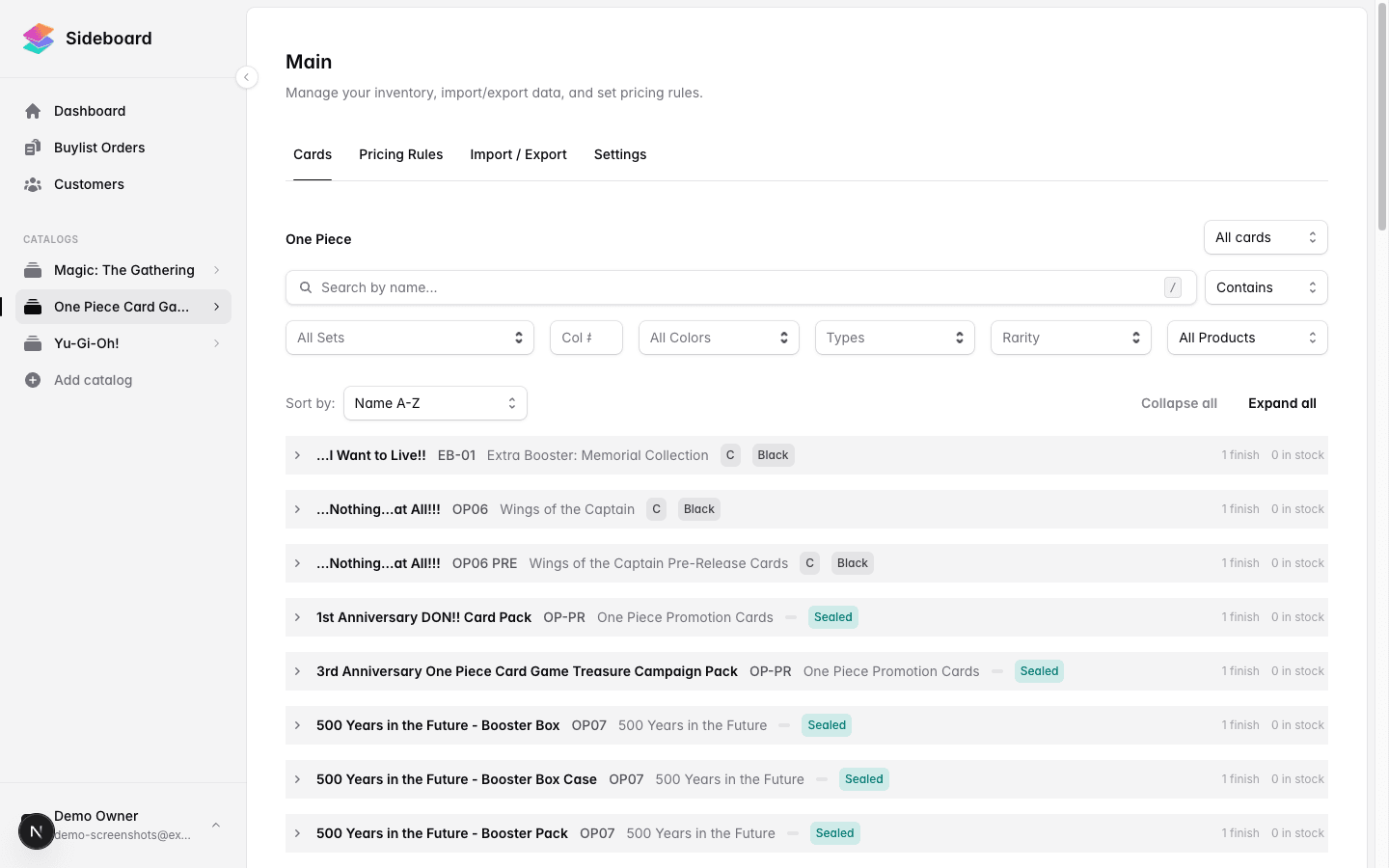
Your Sideboard inventory is your live stock ledger — every card you carry, in every condition and finish, lives here. This guide walks you through adding cards one at a time. If you want to add hundreds of cards at once, skip ahead to Bulk CSV Import.
Before You Start
Sideboard maintains a separate inventory for each trading card game you carry. Make sure you’ve selected the right game (MTG, One Piece, Star Wars Unlimited, Riftbound, etc.) from your dashboard before adding cards.
Adding a Single Card
- Open Inventory from the left navigation.
- Click Add Card (top right).
- In the search box, type the card name. Results appear as you type.
- Select the card from the results list. If the card appears in multiple sets, choose the correct printing.
- Fill in the item details (see the field reference below).
- Click Save to add the card to your inventory.
The card will appear in your inventory list immediately. If you have a Shopify storefront connected, the listing is pushed automatically within a few seconds.
Item Fields Reference
When adding or editing a card, you’ll see these fields:
Quantity
How many copies you have in stock. Must be 0 or greater. Setting it to 0 removes the item from your live inventory (but keeps the record for history).
Condition
| Label | What it means |
|---|---|
| Near Mint | Practically perfect — no visible wear |
| Lightly Played | Minor scuffs or handling marks |
| Moderately Played | Noticeable wear but still tournament-legal |
| Heavily Played | Significant wear |
| Damaged | Creases, tears, or inking — unplayable in most events |
Each condition is tracked as a separate inventory line, so you can carry the same card in multiple conditions at the same time.
Variant / Finish
| Option | When to use |
|---|---|
| Normal | Standard non-foil printing |
| Foil | Traditional foil treatment |
| Etched | Foil etched-only frames (MTG) |
| Holo Foil | Holographic foil (Pokémon) |
| Reverse Holo Foil | Reverse holographic foil (Pokémon) |
Like condition, each finish is a separate inventory line.
Language
Default is English. Sideboard’s catalog is English-only — if you carry non-English cards, they can’t be matched to the catalog and must be tracked separately.
Edition / Set
This is set when you pick the card from search results. If you added the wrong printing, remove the item and add it again from the correct set.
List Price (Optional)
Leave this blank to let Sideboard’s pricing rules calculate the sell price automatically from market data. Enter a price here only if you want to override the calculated price for this specific card. See Managing Inventory for details on price overrides.
Cost Basis (Optional)
What you paid per copy, for margin tracking. Not shown to customers.
Cards with Multiple Versions in the Same Set
Some cards have alternate art, borderless, or serialized versions that share a collector number. When the search returns multiple results for the same set, hover over each to see the artwork preview, then select the exact version you’re stocking.
SKUs
Sideboard automatically generates a unique SKU for every inventory item when it’s created. You don’t need to enter one manually. SKUs follow this pattern:
SB-[product ID]-[GAME]-[SET]-[COLLECTOR]-[FINISH]-[LANG]-[CONDITION]For example: SB-a1b2c3d4-MTG-M21-152-FOIL-EN-LP
You can use this SKU on shelf labels or in your own POS workflows. SKUs are visible on the item detail page and in CSV exports.
Condition Price Adjustments
Sideboard applies automatic discounts by condition when calculating prices from market data:
| Condition | Default discount |
|---|---|
| Near Mint | No discount (100%) |
| Lightly Played | 10% off |
| Moderately Played | 25% off |
| Heavily Played | 40% off |
| Damaged | 60% off |
You can adjust these percentages store-wide in Settings → Pricing. Individual item overrides are available via the manual price toggle (see Managing Inventory).
Common Issues
The card I’m looking for doesn’t appear in search.
The card may not be in Sideboard’s catalog yet. New sets are added within a few days of official spoiler release. If a card from a recently released set is missing, reach out to support.
I added the wrong condition or finish.
You can’t change the condition or finish on an existing item — these are identity fields (they define which product variant this is). Remove the item and add it again with the correct values. Any quantity history is preserved in your audit log.
The card appears in my inventory but not on Shopify.
Check that your Shopify integration is connected in Settings → Integrations. If it’s connected, the sync usually completes within 30 seconds. If it’s still missing after a minute, go to Settings → Integrations → Shopify and click Reconcile to force a full sync check.
What’s Next
- Bulk CSV Import — Add hundreds of cards at once from a spreadsheet or BinderPOS export.
- Managing Inventory — Edit quantities, set manual prices, and bulk-update items.
- Exporting Inventory — Download your inventory as a CSV.
- How Pricing Works — Understand how Sideboard calculates sell prices from market data.
- Creating a Buylist — Set up buy prices for cards you want to purchase.
Was this page helpful?
Spotted something wrong, or want to suggest an improvement? Email support → — your message goes straight to engineering.