Customer Management
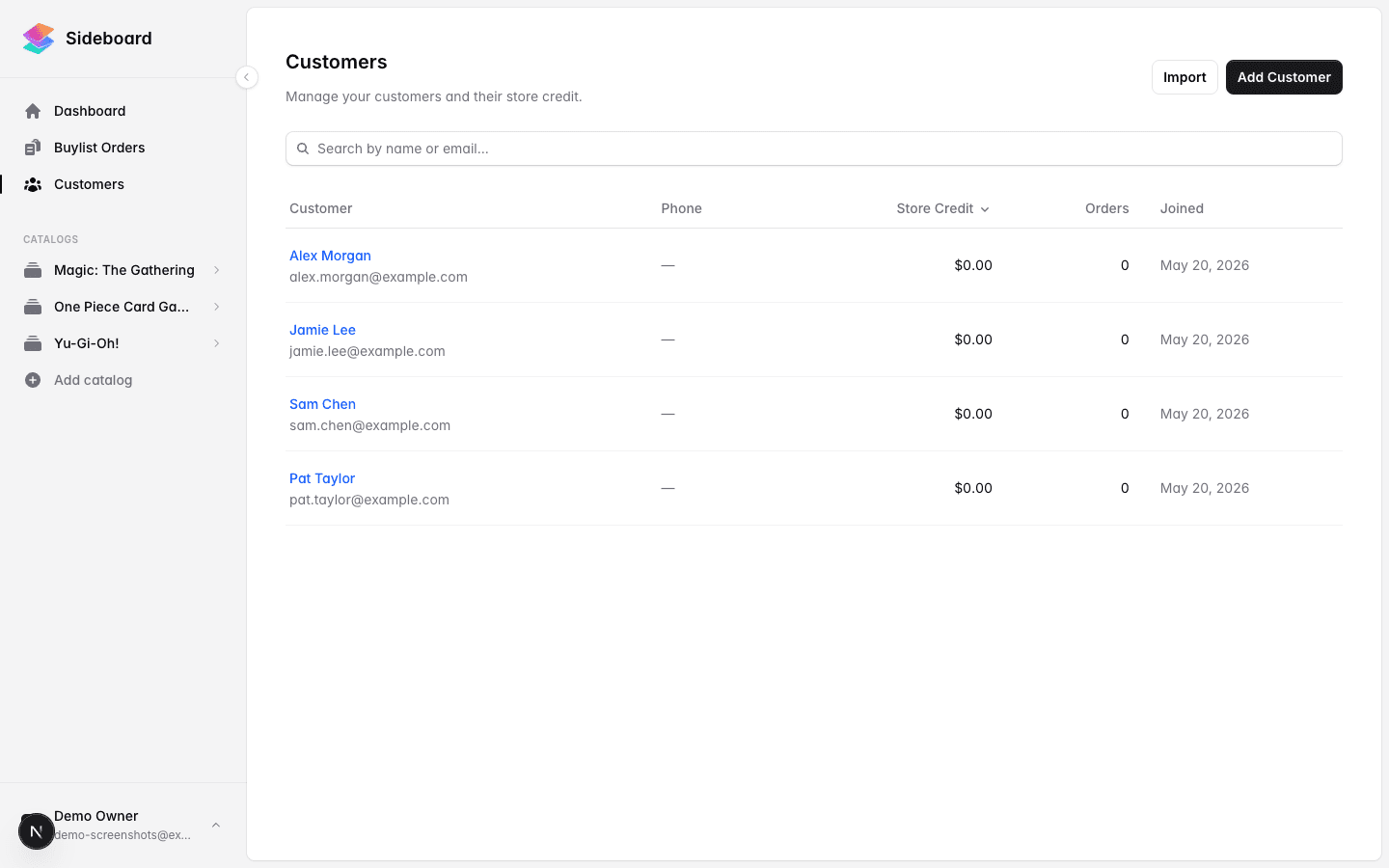
Sideboard keeps a customer directory for your store. Every customer has a profile with their contact details, store credit balance, and a full history of their transactions with you — buylist payouts, credit redemptions, and manual adjustments. If you’re connected to Shopify, customer records sync bidirectionally so the same customer appears in both systems.
What’s tracked per customer
Each customer record holds:
| Field | Notes |
|---|---|
| Name (first + last) | Used on buylist orders and store credit payouts |
| Email address | Unique identifier; used to match customers across systems |
| Phone number | Optional |
| Store credit balance | Current available balance for your store |
| Transaction history | Every credit issued or redeemed, with timestamps and amounts |
Adding a customer
You can add customers individually or in bulk.
Single customer:
- Go to Customers in the sidebar.
- Click New customer (top right).
- Enter their name, email, and optionally a phone number.
- Click Save.
The customer is immediately available on buylist orders and can receive store credit.
During a buylist order:
You don’t need to pre-create customers. When you create a buylist order, you can look up an existing customer by name or email, or create a new one on the spot. Sideboard will create the customer record automatically.
Importing a list (CSV):
- Go to Customers → Import.
- Upload a CSV, or paste rows in by hand.
- Review the rows, then click Import.
A row needs a name or an email — not both. An email-only customer is perfectly valid, and so is a name-only one. Only rows with neither are skipped.
Store credit can come in with the import: put the balance in a Store Credit column and it’s applied as the customer’s opening balance. Use plain numbers — 25.00 or $25.00 or 1,250.00 all work. If we can’t read an amount, that row is skipped and told to you rather than imported with a zero balance.
Two things worth knowing about credit:
- It’s applied only to customers we create. Anyone already in your store keeps the balance they have, so re-running a file won’t top people up twice.
- Because of that, an import is not a way to adjust existing balances — use the customer’s profile for that.
There’s no row limit — import your whole customer list in one go. Large files are processed in the background, so the screen will show progress for a moment before the result; you can leave it open.
When the import finishes you’ll see exactly what happened — how many were created, how many were already in your store, and how many rows were skipped and why. If a row didn’t make it, it will say so.
Searching and finding customers
The Customers page has a search bar that filters across name, email, and phone number in real time. You can also sort the list by name, credit balance, order count, or join date.
Common search patterns:
- Type a first name to narrow the list instantly
- Paste an email address to find an exact match
- Search a partial phone number if you only have part of it
Customer profiles
Clicking a customer opens their profile page. From here you can:
- Edit their name, email, or phone
- View store credit balance and add or deduct credit manually
- Browse transaction history — every payout, redemption, and adjustment, in chronological order
- Add a comment — internal note visible only to your staff
- Edit notes — a free-text field for longer-form context (e.g., “prefers cash, only brings Pokemon cards”)
Deleting a customer
Customers can be soft-deleted from their profile. A soft-deleted customer no longer appears in search results or on new buylist orders, but their historical transactions remain intact for your records. If you need to re-activate a deleted customer, contact Sideboard support.
Shopify sync
If your store is connected to Shopify, customer records stay in sync automatically:
- When you add or update a customer in Sideboard, the change pushes to Shopify.
- When a customer updates their profile in your Shopify store, the change pulls back into Sideboard.
- Store credit balances sync in both directions — Sideboard is the source of truth, but Shopify stays current.
Matching is done by email address. If a customer already exists in Shopify when you connect, Sideboard will link the records automatically during the initial sync.
You don’t need to manage this sync manually — it runs in the background whenever a change happens.
Permissions
All staff members can view and search the customer list, view profiles, and create new customers. Adjusting store credit and adding internal notes are also available to all staff. Only store owners can delete customers.
What’s next
- Store Credit — How credit is issued, redeemed, and tracked
- The Order Flow — How buylist orders create customers and pay out store credit
- Shopify Integration — Connecting your Shopify store for bidirectional customer sync
Was this page helpful?
Spotted something wrong, or want to suggest an improvement? Email support → — your message goes straight to engineering.