Settings Overview
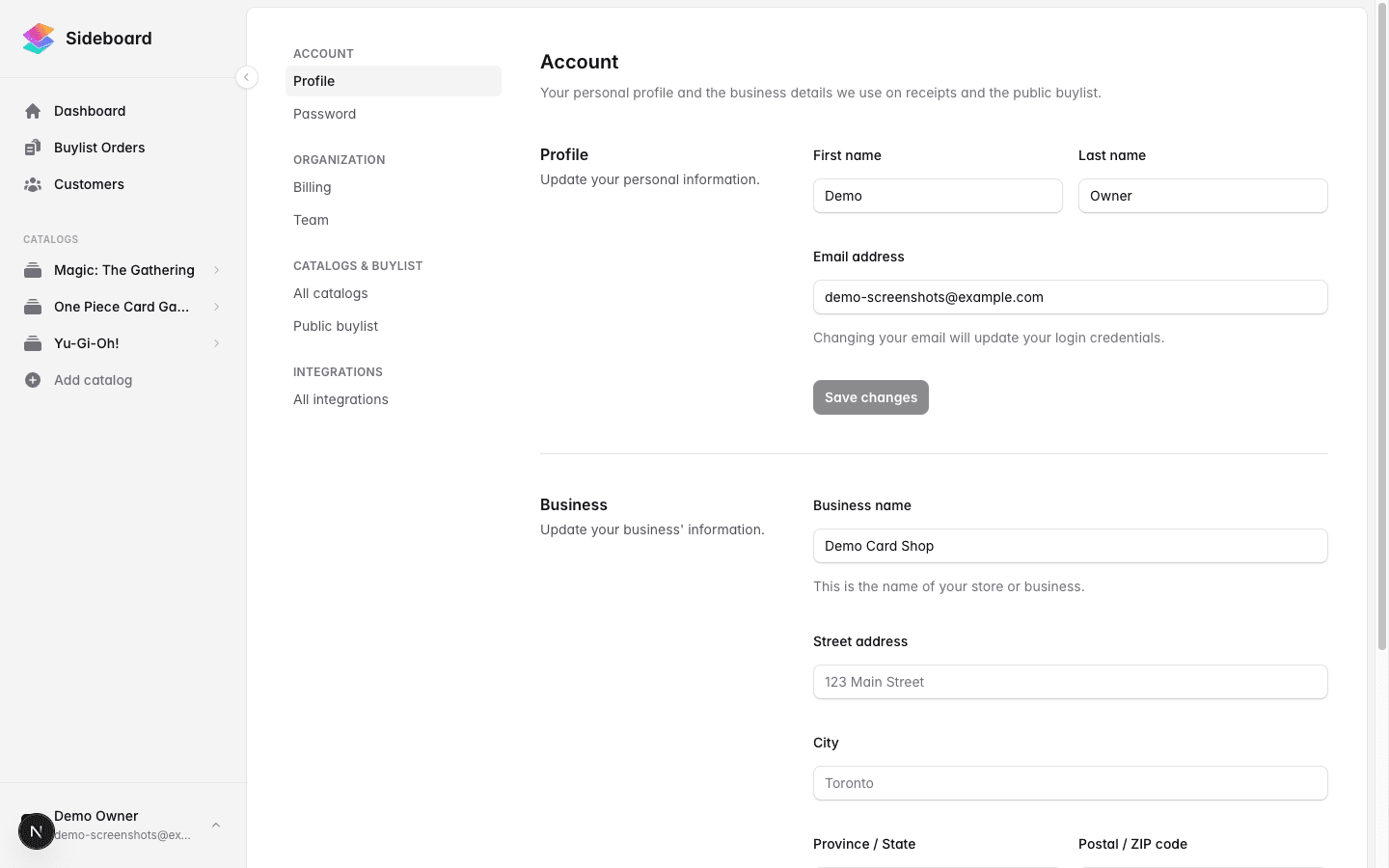
Settings is where you control everything about your Sideboard account that isn’t day-to-day operations. It’s organized into five sections. Think of it as the configuration layer — you set things up here once, then spend most of your time back in the main app.
How to get to Settings
Settings doesn’t appear as a link in the main sidebar. Instead, click the avatar chip in the bottom-left corner of the app. A small menu appears with a Settings option at the top. Click it to open the Settings area.
When you’re inside Settings, the main app sidebar is replaced by a Settings navigation rail on the left. To return to the app, click ← Back to app at the top of the rail.
The five sections
Account — your personal profile
Settings that belong to you, not your store. Changes here don’t affect other staff members.
- Profile — Edit your name, email address, and profile picture.
- Password — Change your account password.
Organization — your store’s configuration
Owner-only. These settings apply to your entire organization.
- Billing — Your subscription, payment method, invoices, and the Stripe customer portal. This is also where you cancel or add individual game catalogs.
- Team — Manage who has access to your Sideboard account. Invite new staff members, remove people who’ve left, and see pending invitations.
- Calendar — Your calendar’s time zone, and how customers pay for event tickets: in person, or online through your Shopify checkout. Appears once you hold a catalog subscription. See Tickets and payment.
Only store owners see the Organization section. Other staff members see everything else in Settings.
Catalogs & Buylist — your subscribed games and public storefront
All users can see this section.
- All catalogs — Every game catalog Sideboard supports, with the current subscription status of each one. Each subscribed game shows its status (active, past due, etc.) alongside quick links to its inventories and buylists.
- Public buylist — Store-level configuration for your Sideboard buylist storefront: store name, address, payment methods you accept, social links, content sections, the messages customers see when checking on their order status, and branding (your logo, accent color, and the heading and body fonts).
Non-owner staff members can navigate into individual games and manage inventories and buylists, but subscription controls (subscribe, cancel) are only available to owners.
Integrations — connected external systems
Connect Sideboard to the tools you already use:
- Shopify — Link your Shopify store for bidirectional inventory and customer sync.
- CardTrader — Connect your CardTrader account to sell across their marketplace.
Integration status (connected / not connected) is visible to all staff, but connection and disconnection is typically owner-managed.
Staff — internal Sideboard tooling
This section is hidden entirely from non-Sideboard staff. If you don’t see it, that’s expected — it’s for internal use only.
Where to find common things
This table answers “where do I go to…?” for the most common Settings tasks:
| Task | Where |
|---|---|
| Change my name or email | Settings → Account → Profile |
| Change my password | Settings → Account → Password |
| Invite a team member | Settings → Organization → Team |
| Remove a team member | Settings → Organization → Team |
| Change my store’s name | Settings → Account → Profile (Business section) |
| Set up storefront payment methods | Settings → Catalogs & Buylist → Public buylist |
| Subscribe to a new game | Settings → Catalogs & Buylist → All catalogs |
| Cancel a game subscription | Settings → Organization → Billing |
| View invoices | Settings → Organization → Billing |
| Update my credit card | Settings → Organization → Billing → Manage in Stripe |
| Set the time zone your events run in | Settings → Organization → Calendar |
| Choose how event tickets are paid for | Settings → Organization → Calendar |
| Create or edit an event | Calendar (sidebar) |
| Connect Shopify | Settings → Integrations → Shopify |
| Connect CardTrader | Settings → Integrations → CardTrader |
The sidebar vs. Settings
The main app sidebar (visible everywhere except inside Settings) shows your subscribed game catalogs as clickable rows. Clicking a catalog row on desktop opens a small popover with links to browse products, open inventories, and open buylists for that game. This is different from Settings — the sidebar is for navigating into your day-to-day work; Settings is for configuration.
The + Add catalog link at the bottom of the sidebar takes you to Settings → Catalogs & Buylist, where you can subscribe to new games.
Permissions summary
| Section | Who can see it | Who can change it |
|---|---|---|
| Account | All users | Each user (their own profile only) |
| Organization | Owners only | Owners only |
| Catalogs & Buylist | All users | Subscription actions: owners only |
| Integrations | All users | Typically owners |
| Staff | Sideboard staff only | Sideboard staff only |
What’s next
- Billing — Subscriptions, pricing, cancellation, and what happens when you cancel
- Adding Your First Game — Subscribe to a game catalog and get started
- Shopify Integration — Connect your Shopify store
Was this page helpful?
Spotted something wrong, or want to suggest an improvement? Email support → — your message goes straight to engineering.